Introduction
Recently, I’ve had the need to support an offline scenario in a Blazor WASM PWA application. To manage an offline state, I needed to find a way to store complex data on the client – data that typically resides in a relational database on the server.
Initially, I explored whether LocalStorage could be utilised, and while it is indeed possible to store data there, it was not a sufficient solution for the intricate data I needed to store. This prompted me to investigate whether SQLite could be employed. It turns out that it can, but some caveats and workarounds are necessary to make it work.
Recent updates allow the SQLite runtime to be compiled to WASM and included as part of the Blazor application, but this runtime stores the files in MEMFS, which is a temporary storage solution. When the browser is closed, this storage is cleared. What I required was something more persistent, such as IndexedDB. Unfortunately, Blazor does not natively support interaction with IndexedDB, nor does the SQLite runtime. Thus, I needed to construct a bridge between the temporary MEMFS storage and IndexedDB to keep the data in sync.
Several posts and examples online present partial solutions, but nothing demonstrates how it all functions end-to-end. Consequently, I’m going to guide you through everything, from creating the initial Blazor template project to building a fully functional application that saves and loads data using SQLite with IndexedDB as the backing store. You can then take it further or use what you’ve learnt in your own applications.
Before I continue, I need to make a massive shout-out to these posts. I would not have been able to figure it out without them:
- Building Offline-First Apps in C# with IndexedDB for Blazor WebAssembly | IT trip
- c# – How to use SQLite in Blazor WebAssembly? – Stack Overflow
- [Sneak Preview] Blazor WebAssembly: The Power Of EF Core And SQLite In The Browser – In-Depth – Thinktecture AG
If you wish to gain a better understanding of the various technologies involved, such as MEMFS and IndexedDB, and how they interact with SQLite and Blazor, I recommend reading this article before continuing here.
You can find the complete code on my GitHub profile here. I have created a commit after each section so you can quickly switch to a section and follow along.
Creating the initial project
We’re going to start with the default Blazor project. You can either use your IDE tooling, or use these steps with the .NET CLI. I’m using .NET 9, which is the latest version at the time of writing.
Begin by opening your command-line interface from the directory where you would like to create your project.
Run the following command to create a new Blazor WebAssembly project, replacing YourProjectName with your desired project name:
dotnet new blazorwasm -o YourProjectName
This command initialises a new project in a folder called YourProjectName.
After the project creation is complete, change into your project directory by running:
cd YourProjectName
To run your newly created Blazor WebAssembly application, execute the following command:
dotnet run
This will build and run the application using the built-in development server. You can then open your web browser and navigate to https://localhost:XXXX to see your application running. Replace XXXX with the port number shown in your console window.
Add Create, Delete and Update Functionality
The default template retrieves and displays fictitious weather forecasts, representing the R (Read) in CRUD (Create, Read, Update, Delete). To thoroughly test a SQLite database, we also need to test the Create, Update, and Delete functionalities. We will modify the template to include this. For now, this will use a simple in-memory datastore.
Open NavMenu.razor and remove the links to the Home and Counter pages. These pages aren’t needed, and the application can load the Weather page directly. This is what must be removed:
<div class="nav-item px-3">
    <NavLink class="nav-link" href="" Match="NavLinkMatch.All">
        <span class="bi bi-house-door-fill-nav-menu" aria-hidden="true"></span> Home
    </NavLink>
</div>
<div class="nav-item px-3">
    <NavLink class="nav-link" href="counter">
        <span class="bi bi-plus-square-fill-nav-menu" aria-hidden="true"></span> Counter
    </NavLink>
</div>
Delete the Counter.razor and Home.razor files.
Most of the changes will be in the Weather.razor file. To start, modify the @page directive at the top of the page to be the home page and add a using statement for Microsoft.AspNetCore.Components.Forms. This using statement will be required for later when we add an EditForm component, which will allow editing the forecast data.
@page "/"
@using Microsoft.AspNetCore.Components.Forms
Update the <p> tag so the message applies to the changes.
<p>This component demonstrates managing weather forecast data.</p>
In the <thead> section, add a new <th> element for Actions.
<th>Actions</th>
Further down in the <tbody>, add the actions.
<td>
    <button class="btn btn-sm btn-warning" @onclick="() => ShowAddEditDialog(forecast)">Edit</button>
    <button class="btn btn-sm btn-danger" @onclick="() => DeleteForecast(forecast)">Delete</button>
</td>
We’ll implement these methods soon.
Just after the else { section, add a button to allow editing a forecast. This will be just above the <table> tag.
<div class="mb-3">
    <button class="btn btn-primary" @onclick="() => ShowAddEditDialog()">Add New Forecast</button>
</div>
After the </table> tag, add the following, which will display a modal if showDialog is true. The dialog will contain a simple form using EditForm for validation to capture details when creating or updating a forecast.
@if (showDialog)
{
    <div class="modal fade show" style="display: block" tabindex="-1">
        <div class="modal-dialog">
            <div class="modal-content">
                <div class="modal-header">
                    <h5 class="modal-title">@(editingForecast == null ? "Add Forecast" : "Edit Forecast")</h5>
                    <button type="button" class="btn-close" @onclick="CloseDialog"></button>
                </div>
                <div class="modal-body">
                    <EditForm Model="@currentForecast" OnValidSubmit="@SaveForecast">
                        <DataAnnotationsValidator />
                        <ValidationSummary />

                        <div class="mb-3">
                            <label for="date" class="form-label">Date</label>
                            <InputDate id="date" class="form-control" @bind-Value="currentForecast.Date" />
                        </div>

                        <div class="mb-3">
                            <label for="temperature" class="form-label">Temperature (°C)</label>
                            <InputNumber id="temperature" class="form-control" @bind-Value="currentForecast.TemperatureC" />
                        </div>

                        <div class="mb-3">
                            <label for="summary" class="form-label">Summary</label>
                            <InputText id="summary" class="form-control" @bind-Value="currentForecast.Summary" />
                        </div>

                        <div class="modal-footer">
                            <button type="submit" class="btn btn-primary">Save</button>
                            <button type="button" class="btn btn-secondary" @onclick="CloseDialog">Cancel</button>
                        </div>
                    </EditForm>
                </div>
            </div>
        </div>
    </div>
    <div class="modal-backdrop fade show"></div>
}
In the @code section of the file, add the following fields, which will be used to track the state of weather forecasts and also allow for the modal to be toggled. This code will replace private WeatherForecast[]? forecasts;.
private List<WeatherForecast> forecasts;
private WeatherForecast currentForecast = new();
private WeatherForecast editingForecast;

private bool showDialog;
Update the OnInitializedAsync() method to load the forecasts from the JSON file and then store them in the list. Replace the code within the method with the following:
if (forecasts == null)
{
    var loadedForecasts = await Http.GetFromJsonAsync<WeatherForecast[]>("sample-data/weather.json");
    forecasts = new List<WeatherForecast>(loadedForecasts);
}
Next, let’s finally implement the ShowAddEditDialog method. This method will handle both creating new forecasts and updating existing ones. If the forecast parameter is provided, it will be updated; otherwise, a new forecast will be created. The end of the method sets showDialog to true, displaying the modal.
private void ShowAddEditDialog(WeatherForecast forecast = null)
{
    editingForecast = forecast;
    currentForecast = forecast != null
        ? new WeatherForecast
        {
            Date = forecast.Date,
            TemperatureC = forecast.TemperatureC,
            Summary = forecast.Summary
        }
        : new WeatherForecast { Date = DateOnly.FromDateTime(DateTime.Today) };
    showDialog = true;
}
Add the following method below to close the dialog. It’s relatively simple, setting showDialog to false and resetting the currentForecast and editingForecast fields.
private void CloseDialog()
{
    showDialog = false;
    currentForecast = new WeatherForecast();
    editingForecast = null;
}
The final method to implement is SaveForecast, which, as its name states, will save the forecast. It checks whether editingForecast exists and, if so, updates the related forecast; otherwise, it adds a new forecast to the list. Finally, it calls CloseDialog to close the dialog.
private void SaveForecast()
{
    if (editingForecast != null)
    {
        var index = forecasts.IndexOf(editingForecast);
        forecasts[index] = currentForecast;
    }
    else
    {
        forecasts.Add(currentForecast);
    }

    CloseDialog();
}
The final method to implement is DeleteForecast. This one is simple – it only needs to remove the forecast from the list.
private void DeleteForecast(WeatherForecast forecast)
{
    forecasts.Remove(forecast);
}
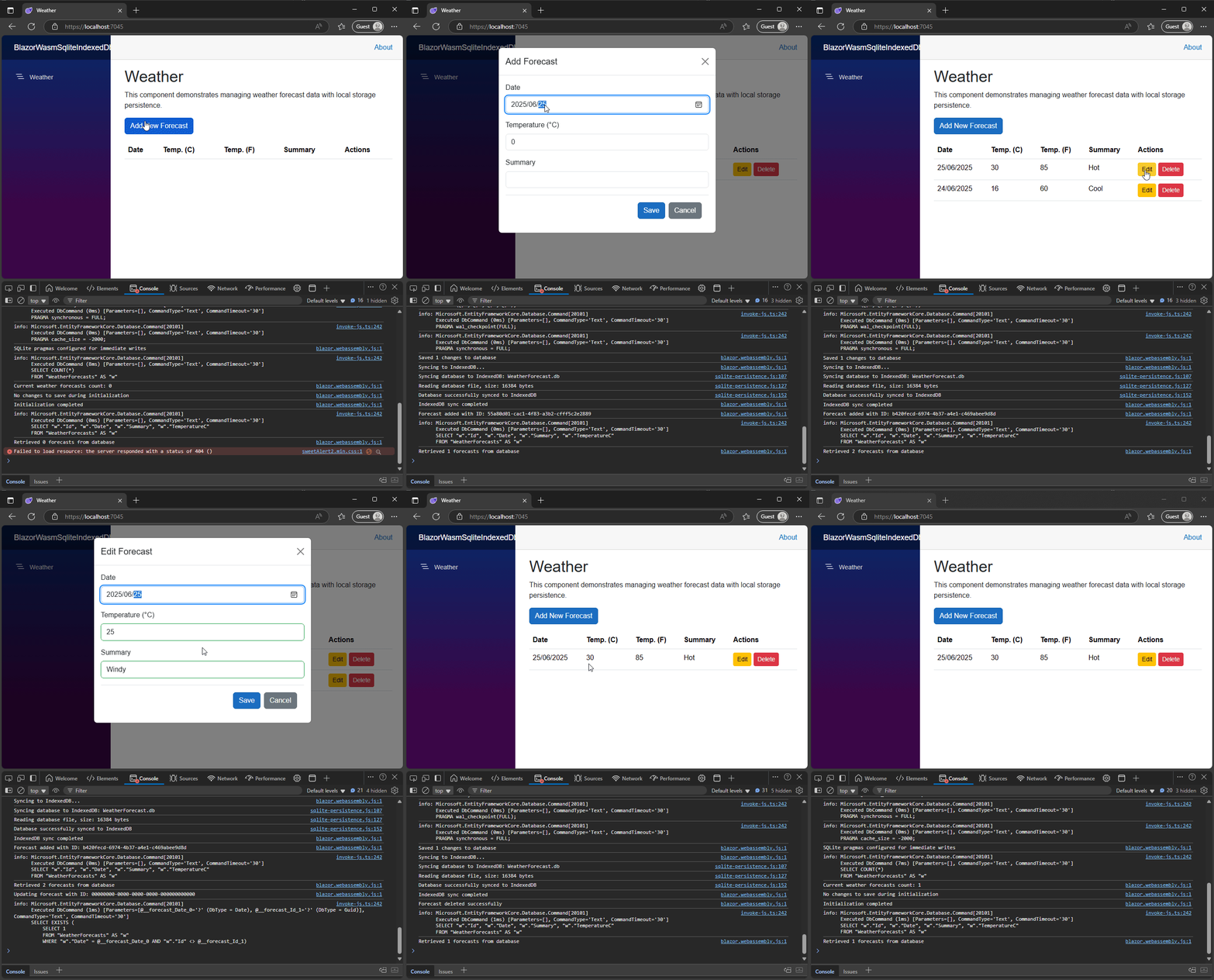
Run the application, and you should be able to Create, Update, and Delete forecasts. If you refresh the page, the changes will be lost. We’ll work on that next.
Use LocalStorage for Persisting Data
We’ll work our way to persisting data in SQLite iteratively. The first step will be to store the data in LocalStorage.
Create a folder named Models in the project’s root directory and add a new file called WeatherForecast.cs with the following content.
public class WeatherForecast
{
    public DateOnly Date { get; set; }
    public int TemperatureC { get; set; }
    public string? Summary { get; set; }
    public int TemperatureF => 32 + (int)(TemperatureC / 0.5556);
}
Remove the WeatherForecast class definition from Weather.razor. By placing it here and moving it out of the Weather.razor page, we can more easily share it across different parts of the project.
We will create another class called WeatherForecastService, which will handle the CRUD operations. The Weather.razor page will utilise this service, and once implemented, all data persistence-related changes will be confined to this class.
public class WeatherForecastService
{
}
To begin, declare some fields and a constructor that will be invoked by Blazor’s dependency injection service to initialise the two services – IJSRuntime and HttpClient. IJSRuntime is required so that we can invoke JavaScript for reading and writing from/to LocalStorage. The HttpClient is necessary to load the initial seed forecasts from the JSON file.
private readonly IJSRuntime _jsRuntime;
private readonly HttpClient _httpClient;

private const string StorageKey = "weatherForecasts";
private List<WeatherForecast>? _forecasts;

public WeatherForecastService(IJSRuntime jsRuntime, HttpClient httpClient)
{
    _jsRuntime = jsRuntime;
    _httpClient = httpClient;
}
We’ll also introduce a private method to save data in the cached forecasts list. This method stores forecast data using the browser’s local storage (via JavaScript interop), making sure that changes are retained across browser sessions. Later, this method will be used to save the data to a SQLite database.
private async Task SaveChangesAsync()
{
    if (_forecasts == null) return;

    var serializedData = JsonSerializer.Serialize(_forecasts);
    await _jsRuntime.InvokeVoidAsync("localStorage.setItem", StorageKey, serializedData);
}
Let’s begin with the first method – GetForecastsAsync(). This checks if any forecasts are stored in the _forecasts list, and if so, returns them. If no forecasts are found in the list, it then checks LocalStorage, and if there is also nothing, it loads the seeded forecasts and saves them to LocalStorage.
public async Task<List<WeatherForecast>> GetForecastsAsync()
{
    if (_forecasts != null)
        return _forecasts;

    var storedForecasts = await _jsRuntime.InvokeAsync<string>("localStorage.getItem", StorageKey);

    if (string.IsNullOrEmpty(storedForecasts))
    {
        // Load initial data from the JSON file
        var initialForecasts = await _httpClient.GetFromJsonAsync<WeatherForecast[]>("sample-data/weather.json");
        _forecasts = new List<WeatherForecast>(initialForecasts ?? Array.Empty<WeatherForecast>());
        await SaveChangesAsync();
    }
    else
    {
        _forecasts = JsonSerializer.Deserialize<List<WeatherForecast>>(storedForecasts) ?? new List<WeatherForecast>();
    }

    return _forecasts;
}
We’ll create the AddForecastAsync method next. It adds a new weather forecast to the existing list of forecasts. It first retrieves the current list by calling GetForecastsAsync(), then adds the provided forecast object to this list. After updating the list, it saves the changes to local storage by calling SaveChangesAsync(). Finally, it returns the newly added forecast. This method ensures that any new forecast is both stored in memory and persisted in the browser’s local storage for future use.
public async Task<WeatherForecast> AddForecastAsync(WeatherForecast forecast)
{
    var forecasts = await GetForecastsAsync();
    forecasts.Add(forecast);
    await SaveChangesAsync();
    return forecast;
}
Create the next method – UpdateForecastAsync. It updates an existing weather forecast in LocalStorage. It first retrieves the current list of forecasts (loading from LocalStorage if necessary). Then, it searches for a forecast with the same Date as the one to update. If it finds a match, it replaces the old forecast with the new one provided. Finally, it returns the updated list to LocalStorage so the changes persist.
public async Task UpdateForecastAsync(WeatherForecast forecast)
{
    var forecasts = await GetForecastsAsync();
    var index = forecasts.FindIndex(f => f.Date == forecast.Date);
    if (index != -1)
    {
        forecasts[index] = forecast;
        await SaveChangesAsync();
    }
}
The last method to implement is the DeleteForecastAsync method. It is responsible for removing a specific weather forecast from the list of forecasts. It first calls GetForecastsAsync() to ensure it has the latest list of forecasts, possibly loading them from local storage if necessary. Then, it removes all forecasts from the list that have the same Date as the one passed in. After removing the matching forecast(s), it saves the updated list back to local storage by calling SaveChangesAsync(). This ensures that the deleted forecast is no longer stored or displayed in the app.
public async Task DeleteForecastAsync(WeatherForecast forecast)
{
    var forecasts = await GetForecastsAsync();
    forecasts.RemoveAll(f => f.Date == forecast.Date);
    await SaveChangesAsync();
}
Modify Program.cs to add the WeatherForecastService to the service collection. You can add this just above await builder.Build().RunAsync();
builder.Services.AddScoped<WeatherForecastService>();
Now we need to modify the Weather.razor file to work with the WeatherforecastService. To start, add some using statements and inject the WeatherForecastService at the top of the file. These lines go just under the @page directive.
@using BlazorWasmSqliteIndexedDb.Services
@using BlazorWasmSqliteIndexedDb.Models
@inject WeatherForecastService ForecastService
Let’s update the paragraph text to align with the changes we’re making:
<p>This component demonstrates managing weather forecast data with local storage persistence.</p>
In the @code section, add a method RefreshForecasts to obtain the latest forecasts from the service.
private async Task RefreshForecasts()
{
    forecasts = await ForecastService.GetForecastsAsync();
}
Change OnInitializedAsync to call this method.
protected override async Task OnInitializedAsync()
{
    await RefreshForecasts();
}
Change the SaveForecast method to make use of the service.
private async Task SaveForecast()
{
    if (editingForecast != null)
    {
        await ForecastService.UpdateForecastAsync(currentForecast);
    }
    else
    {
        await ForecastService.AddForecastAsync(currentForecast);
    }

    await RefreshForecasts();
    CloseDialog();
}
Do the same thing with the DeleteForecast method.
private async Task DeleteForecast(WeatherForecast forecast)
{
     await ForecastService.DeleteForecastAsync(forecast);
     await RefreshForecasts();
}
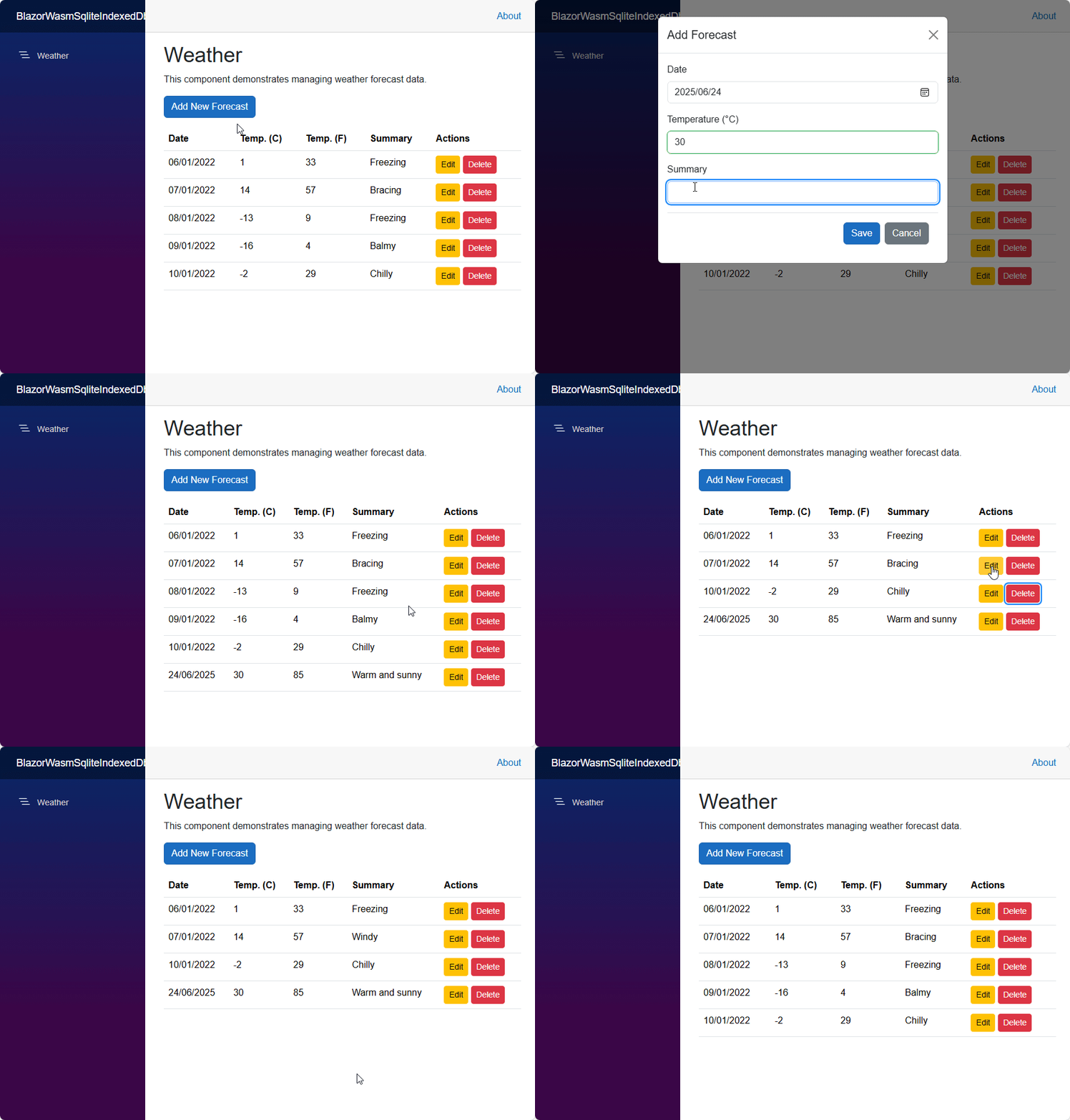
Run the application. It will behave similarly to before, except now the data will be persisted after refreshing the page, and you will see the data is stored in LocalStorage.
Move from LocalStorage to SQLite
Now that we have a functional persistence implementation, the next step is to switch from storing data in local storage to saving it in a local SQLite database on the client. Additionally, we will implement SweetAlert2 to enhance the user experience.
Start by adding the following NuGet packages:
- CurrieTechnologies.Razor.SweetAlert2
- Microsoft.EntityFrameworkCore.Sqlite
We’ll start by making the SweetAlert2 changes. In Program.cs, add the following after the line where we the WeatherForecastService was added previously.
builder.Services.AddSweetAlert2(options => {
    options.Theme = SweetAlertTheme.Default;
});
Update the index.html file with the changes needed for SweetAlert. In the <head> section, add the following:
<link rel="stylesheet" href="_content/CurrieTechnologies.Razor.SweetAlert2/sweetAlert2.min.css" />
Underneath where the Blazor script is configured, add the following:
<script src="_content/CurrieTechnologies.Razor.SweetAlert2/sweetAlert2.min.js"></script>
In Weather.razor, add the following to the top of the file, under the other @using statements.
@using CurrieTechnologies.Razor.SweetAlert2
@inject SweetAlertService Swal
In SaveForecast, wrap the code in a try/catch block, and if there is an exception, display the message to the user using SweetAlert.
 private async Task SaveForecast()
 {
     try
     {
         if (editingForecast != null)
         {
             await ForecastService.UpdateForecastAsync(currentForecast);
         }
         else
         {
             await ForecastService.AddForecastAsync(currentForecast);
         }

         await RefreshForecasts();
         CloseDialog();
     }
     catch (Exception ex)
     {
         await Swal.FireAsync(new SweetAlertOptions
         {
             Title = "Error",
             Text = ex.Message,
             Icon = SweetAlertIcon.Error
         });
     }
 }
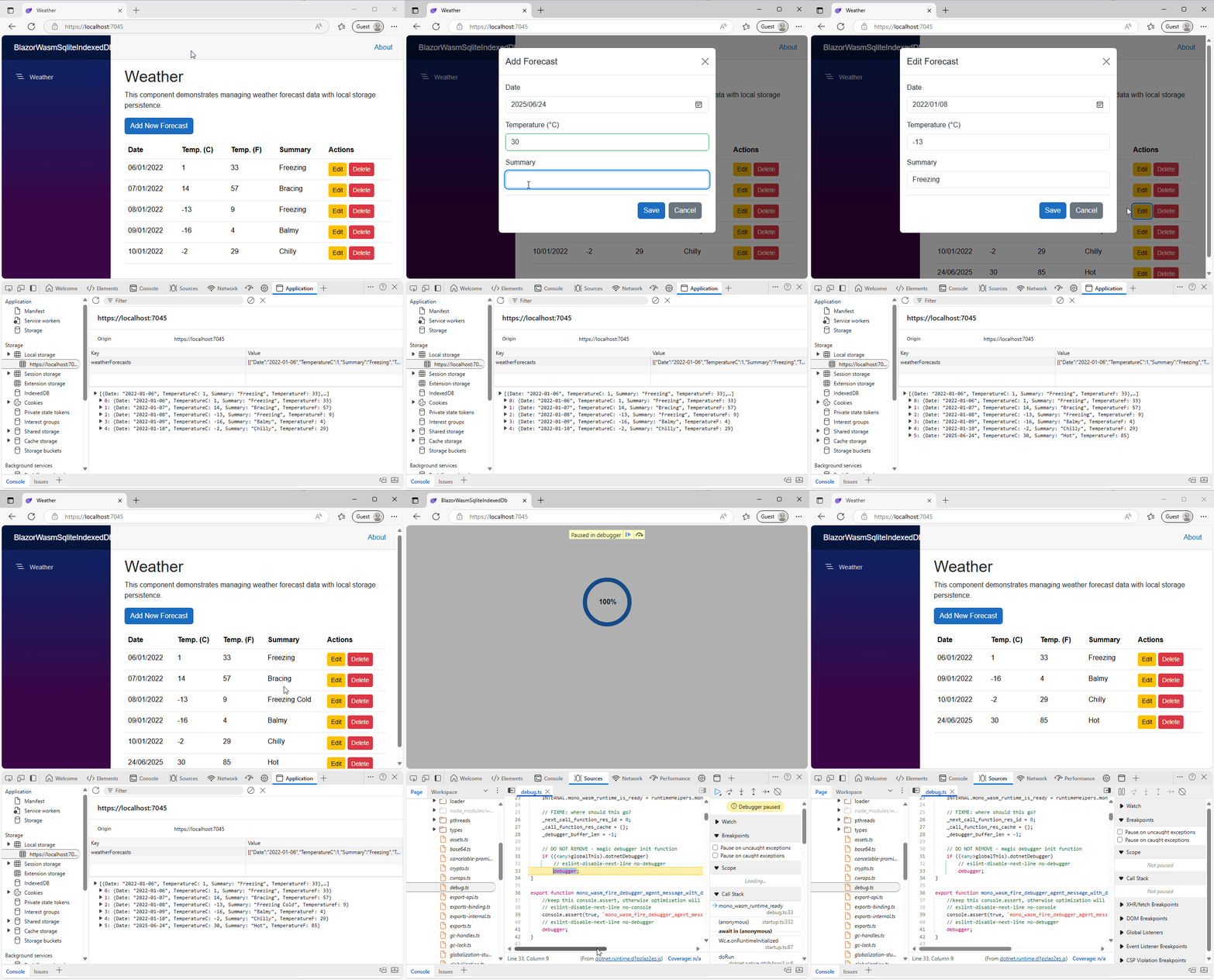
Modify DeleteForecast to prompt the user to confirm that they want to delete the forecast and display a message to let them know that it has been deleted.
private async Task DeleteForecast(WeatherForecast forecast)
{
    var result = await Swal.FireAsync(new SweetAlertOptions
    {
        Title = "Are you sure?",
        Text = "You won't be able to revert this!",
        Icon = SweetAlertIcon.Warning,
        ShowCancelButton = true,
        ConfirmButtonText = "Yes, delete it!",
        CancelButtonText = "Cancel"
    });

    if (result.IsConfirmed)
    {
        await ForecastService.DeleteForecastAsync(forecast);
        await RefreshForecasts();
        StateHasChanged();  // Remove the forecast from the UI before showing the alert.

        await Swal.FireAsync(new SweetAlertOptions
        {
            Title = "Deleted!",
            Text = "The forecast has been deleted.",
            Icon = SweetAlertIcon.Success
        });
    }
}
Next up – adding support for SQLite. We have already started some of the setup by adding the NuGet package.
The WeatherForecast model needs to be updated with an Id property. This is because if we use the Date as the primary key, Entity Framework Core will not allow us to edit it. Add the following property to WeatherForcast.cs:
public Guid Id { get; set; }
Create a new folder called Data in the project’s root directory, then create a file with a class called WeatherForecastDbContext in it. This will be a simple DbContext class that defines the WeatherForecast model as a DbSet. Some rules are configured where the Id is set as the key and the Date must be unique.
public class WeatherForecastDbContext : DbContext
{
    public WeatherForecastDbContext(DbContextOptions<WeatherForecastDbContext> options)
        : base(options)
    {
        Database.EnsureCreated();
    }

    public DbSet<WeatherForecast> WeatherForecasts { get; set; } = null!;

    protected override void OnModelCreating(ModelBuilder modelBuilder)
    {
        modelBuilder.Entity<WeatherForecast>(entity =>
        {
            entity.HasKey(e => e.Id);
            entity.HasIndex(e => e.Date).IsUnique();
        });
    }
}
We also need to make a change in Program.cs. Add the following after where we added support for SweetAlert. It will add support for Entity Framework Core with SQLite using the WeatherForecastDbContext that we just created.
builder.Services.AddDbContextFactory<WeatherForecastDbContext>(options =>
    options.UseSqlite($"Filename=WeatherForecast.db"));
The project should compile at this stage, but it won’t utilise Entity Framework Core and SQLite. For that, we need to make changes to the WeatherForecastService. In the WeatherForecastService class, remove these fields:
private readonly IJSRuntime _jsRuntime;
private const string StorageKey = "weatherForecasts";
private List<WeatherForecast>? _forecasts;
And add this:
private readonly IDbContextFactory<WeatherForecastDbContext> _contextFactory;
The change of services also requires a change to the constructor:
public WeatherForecastService(HttpClient httpClient, IDbContextFactory<WeatherForecastDbContext> contextFactory)
{
    _httpClient = httpClient;
    _contextFactory = contextFactory;
}
We won’t need to use JSInterop, keep track of the local storage key or maintain an in-memory list of data. The new fields are for keeping track of changes to the SQLite database. The SaveChangesAsync method can also be removed, as we’ll be using the DbContext’s SaveChangesAsync method instead.
Next, implement a new private method called InitializeDataAsync that will be used to ensure the database is initialised correctly.
private async Task InitializeDataAsync()
{
    await using var context = await _contextFactory.CreateDbContextAsync();

    if (!await context.WeatherForecasts.AnyAsync())
    {
        // Load initial data from the JSON file
        var initialForecasts = await _httpClient.GetFromJsonAsync<WeatherForecast[]>("sample-data/weather.json");
        if (initialForecasts != null)
        {
            foreach (var forecast in initialForecasts)
            {
                forecast.Id = Guid.NewGuid();
            }
            await context.WeatherForecasts.AddRangeAsync(initialForecasts);
            await context.SaveChangesAsync();
        }
    }
}
Modify the GetForecastsAsync method to call the InitializeAsync method and then fetch the data from the database.
public async Task<List<WeatherForecast>> GetForecastsAsync()
{
    await InitializeDataAsync();

    await using var context = await _contextFactory.CreateDbContextAsync();
    return await context.WeatherForecasts.ToListAsync();
}
Change the AddForecastAsync method. It needs to use the DbContext and perform additional checks to ensure the date doesn’t exist for other forecasts.
public async Task<WeatherForecast> AddForecastAsync(WeatherForecast forecast)
{
    await using var context = await _contextFactory.CreateDbContextAsync();

    // Check if a forecast with the same date already exists
    if (await context.WeatherForecasts.AnyAsync(f => f.Date == forecast.Date))
    {
        throw new InvalidOperationException("A forecast for this date already exists.");
    }

    forecast.Id = Guid.NewGuid();
    await context.WeatherForecasts.AddAsync(forecast);
    await context.SaveChangesAsync();
    return forecast;
}
Modify the UpdateForecastAsync method. Similar to the AddForecastAsync method, the DbContext needs to be used to perform some additional checks to ensure the date doesn’t exist for forecasts other than the one being updated.
public async Task UpdateForecastAsync(WeatherForecast forecast)
{
    await using var context = await _contextFactory.CreateDbContextAsync();

    // Check if another forecast with the same date exists (excluding current forecast)
    if (await context.WeatherForecasts.AnyAsync(f => f.Date == forecast.Date && f.Id != forecast.Id))
    {
        throw new InvalidOperationException("Another forecast for this date already exists.");
    }

    var existingForecast = await context.WeatherForecasts.FindAsync(forecast.Id);
    if (existingForecast != null)
    {
        context.Entry(existingForecast).CurrentValues.SetValues(forecast);
        await context.SaveChangesAsync();
    }
}
Finally, modify the DeleteForecastAsync method also to use the DbContext class.
public async Task DeleteForecastAsync(WeatherForecast forecast)
{
    await using var context = await _contextFactory.CreateDbContextAsync();
    var existingForecast = await context.WeatherForecasts.FindAsync(forecast.Id);
    if (existingForecast != null)
    {
        context.WeatherForecasts.Remove(existingForecast);
        await context.SaveChangesAsync();
    }
}
If you run the application now, you’ll be able to Create, Update and Delete forecasts, but if you refresh the browser, the data will be lost. The SQLite file is being saved to MEMFS, which is not a persistent storage location. In the next section, we’ll update the code to copy the SQLite database changes to IndexedDB after a database update, and to fetch the database from IndexedDB on application start. This will allow the data to be persisted.
Persisting SQLite to IndexedDB
In this section, we will finalise the project by persisting the SQLite database currently being stored in MEMFS to IndexedDB. We’re going to need to use Javascript to do a lot of the heavy lifting for us as there is currently no way for Blazor’s C# code running in WASM to interact with MEMFS and IndexedDB.
Create a new directory called js in the wwwroot directory, and then create a JavaScript file in the js directory called sqlite-persistence.js. In this file, add the following:
export function setupDatabase(filename) {
    return new Promise((resolve, reject) => {
        console.log(`Setting up database: ${filename}`);

        // Open (or create) the IndexedDB database that will store our SQLite file
        const dbRequest = window.indexedDB.open('SqliteStorage', 1);

        // This event fires if the database doesn't exist or needs version upgrade
        dbRequest.onupgradeneeded = (event) => {
            console.log('Database upgrade needed - creating object store');
            const db = event.target.result;

            // Create the object store if it doesn't exist
            // This is where we'll store our SQLite database file as a binary blob
            if (!db.objectStoreNames.contains('Files')) {
                db.createObjectStore('Files', { keyPath: 'id' });
                console.log('Created Files object store');
            }
        };

        // Handle any errors opening IndexedDB
        dbRequest.onerror = () => {
            console.error('Error opening database:', dbRequest.error);
            reject(dbRequest.error);
        };

        // This fires after IndexedDB is successfully opened
        dbRequest.onsuccess = () => {
            console.log('Database opened successfully');

            // Double-check that our object store exists
            if (!dbRequest.result.objectStoreNames.contains('Files')) {
                console.error('Files object store not found');
                reject(new Error('Files object store not found'));
                return;
            }

            // Try to retrieve the SQLite database file from IndexedDB
            const getRequest = dbRequest.result.transaction('Files', 'readonly')
                .objectStore('Files')
                .get('database'); // We use 'database' as the key for our SQLite file

            getRequest.onsuccess = () => {
                const path = `/${filename}`;

                try {
                    // Check if we found a database in IndexedDB
                    if (getRequest.result) {
                        console.log('Found existing database in IndexedDB, size:', getRequest.result.data.length, 'bytes');

                        // If database already exists in the virtual filesystem, remove it first
                        if (Blazor.runtime.Module.FS.analyzePath(path).exists) {
                            console.log("Database file already exists on local file system, removing it to create a new file from IndexedDB.")
                            Blazor.runtime.Module.FS.unlink(path);
                        }

                        // Create the database file in the virtual filesystem using the data from IndexedDB
                        // Parameters: directory, filename, data, canRead, canWrite, canOwn
                        Blazor.runtime.Module.FS.createDataFile('/', filename, getRequest.result.data, true, true, true);
                        console.log("Database synced from IndexedDB to file system");

                        // Verify the file was created correctly
                        if (Blazor.runtime.Module.FS.analyzePath(path).exists) {
                            const fileSize = Blazor.runtime.Module.FS.stat(path).size;
                            console.log(`Verified: Database file created with size: ${fileSize} bytes`);
                        } else {
                            console.error('Failed to create database file from IndexedDB data');
                        }
                    } else {
                        // No database found in IndexedDB - this is normal for first run
                        console.log('No existing database found in IndexedDB');
                    }
                    resolve();
                } catch (error) {
                    console.error('Error during file system operations:', error);
                    reject(error);
                }
            };

            // Handle errors reading from IndexedDB
            getRequest.onerror = () => {
                console.error('Error reading from database:', getRequest.error);
                reject(getRequest.error);
            };
        };
    });
}
The setupDatabase function checks if a saved SQLite database file exists in the browser’s IndexedDB storage, and if it does, it copies that file into the WebAssembly virtual file system (MEMFS) so the Blazor app can utilise it. If this is the first time running the app, it creates the needed storage area in IndexedDB. The function manages errors and logs activities, ensuring the app always starts with the latest version of the database file, or an empty one if none exists yet.
We also need to implement another function that will be called after any changes are made to the database to ensure the changes are persisted to IndexedDB. Add the following function below the previously added function.
export function syncDatabaseToIndexedDb(filename) {
    return new Promise((resolve, reject) => {
        console.log(`Syncing database to IndexedDB: ${filename}`);

        // Open the IndexedDB database
        const dbRequest = window.indexedDB.open('SqliteStorage', 1);

        // Handle any errors opening IndexedDB
        dbRequest.onerror = () => {
            console.error('Error opening database for sync:', dbRequest.error);
            reject(dbRequest.error);
        };

        // This fires after IndexedDB is successfully opened
        dbRequest.onsuccess = () => {
            const path = `/${filename}`;

            try {
                // Check if the database file exists in the virtual filesystem
                if (Blazor.runtime.Module.FS.analyzePath(path).exists) {
                    // Read the entire database file as a binary blob
                    const data = Blazor.runtime.Module.FS.readFile(path);
                    console.log(`Reading database file, size: ${data.length} bytes`);

                    // Verify the object store exists
                    if (!dbRequest.result.objectStoreNames.contains('Files')) {
                        console.error('Files object store not found during sync');
                        reject(new Error('Files object store not found'));
                        return;
                    }

                    // Create an object to store in IndexedDB
                    // The 'id' property is the key, and 'data' contains the binary database
                    const dbObject = {
                        id: 'database', // Use a fixed key so we always update the same record
                        data: data      // The binary database file content
                    };

                    // Start a transaction and get the object store
                    const transaction = dbRequest.result.transaction('Files', 'readwrite');
                    const objectStore = transaction.objectStore('Files');

                    // Store the database file in IndexedDB
                    // put() will add or update the record with the same key
                    const putRequest = objectStore.put(dbObject);

                    putRequest.onsuccess = () => {
                        console.log('Database successfully synced to IndexedDB');
                        resolve();
                    };

                    putRequest.onerror = () => {
                        console.error('Error syncing to IndexedDB:', putRequest.error);
                        reject(putRequest.error);
                    };
                } else {
                    console.log('Database file does not exist, nothing to sync');
                    resolve();
                }
            } catch (error) {
                console.error('Error during sync operation:', error);
                reject(error);
            }
        };
    });
}
The syncDatabaseToIndexedDb function saves the SQLite database file from the Blazor WebAssembly virtual file system (MEMFS) into the browser’s IndexedDB storage. It first opens (or creates) an IndexedDB database called SqliteStorage and checks for an object store named Files. If the database file exists in the virtual filesystem, it reads it as binary data and stores it in IndexedDB under the key ‘database’. If the file doesn’t exist, it simply does nothing. This process ensures that any changes made to the database in the browser are safely persisted between sessions. If any errors occur during these steps, they are logged, and the promise is rejected.
Now, we need to change the WeatherForecastService class to use the sqlite-persistence.js file. The first step is to add back support for JSInterop by injecting the IJSRuntime. Make the changes below, including a _module field, so that we can dynamically load the JavaScript in the WeatherForecastService without referencing the file in index.html.
private IJSRuntime _js { get; set; }

private IJSObjectReference _module = null;

public WeatherForecastService(
    HttpClient httpClient,
    IDbContextFactory<WeatherForecastDbContext> contextFactory,
    IJSRuntime js)
{
    _httpClient = httpClient;
    _contextFactory = contextFactory;
    _js = js;
}
The code in InitalizeAsync() must be replaced and the method made public. Clear the code in the method and then replace it with the changes below.
Console.WriteLine("Initializing WeatherForecastService...");

// Step 1: Import the JavaScript module that contains IndexedDB functions
_module = await _js.InvokeAsync<IJSObjectReference>("import", "./js/sqlite-persistence.js");
Console.WriteLine("JavaScript module loaded");

// Step 2: Restore database from IndexedDB to the virtual filesystem
// This step is critical - it must happen BEFORE we open the database
// to ensure we don't lose data across page refreshes
await _module.InvokeVoidAsync("setupDatabase", WeatherForecastDbContext.DbFileName);
Console.WriteLine("Database setup completed");

// Step 3: Create a database context and ensure the schema exists
// EnsureCreatedAsync() is safe here because it only creates tables if they don't exist
// It won't overwrite our restored data if the schema already matches
var dbContext = await _contextFactory.CreateDbContextAsync();
var wasCreated = await dbContext.Database.EnsureCreatedAsync();
Console.WriteLine($"Database context created, schema created: {wasCreated}");

// Step 4: Configure SQLite for reliable operation in WebAssembly
// These PRAGMA commands are crucial for ensuring data is written immediately
// to the virtual filesystem and not kept only in memory
await dbContext.Database.ExecuteSqlRawAsync("PRAGMA journal_mode = DELETE;"); // Use simpler journaling mode
await dbContext.Database.ExecuteSqlRawAsync("PRAGMA synchronous = FULL;"); // Force immediate writes
await dbContext.Database.ExecuteSqlRawAsync("PRAGMA cache_size = -2000;"); // Limit cache size to force writes
Console.WriteLine("SQLite pragmas configured for immediate writes");

// Step 5: Check what data we have after initialization
var currentCount = await dbContext.WeatherForecasts.CountAsync();
Console.WriteLine($"Current weather forecasts count: {currentCount}");

// Step 6: Save any changes that might have occurred during initialization
// This is rare but could happen if database upgrades are performed
var changes = await dbContext.SaveChangesAsync();
if (changes > 0)
{
    Console.WriteLine($"Saved {changes} changes during initialization");
    await SyncToIndexedDbAsync();
}
else
{
    Console.WriteLine("No changes to save during initialization");
}

// Clean up resources
await dbContext.DisposeAsync();
Console.WriteLine("Initialization completed");

// Local function to sync the database file to IndexedDB
async Task SyncToIndexedDbAsync()
{
    if (_module == null)
        throw new InvalidOperationException("JavaScript module not initialized");

    Console.WriteLine("Syncing to IndexedDB...");
    await _module.InvokeVoidAsync("syncDatabaseToIndexedDb", WeatherForecastDbContext.DbFileName);
    Console.WriteLine("IndexedDB sync completed");
}
You’ll notice the Console logging and comments, which help explain and track what is happening. First, it loads the JavaScript file that helps store the database in the browser’s IndexedDB. Then, it restores the database file from IndexedDB if it already exists, ensuring no saved forecasts are lost. Next, it creates the database tables if they aren’t there yet, and configures SQLite to save changes immediately instead of just keeping them in memory. Finally, it checks how many forecasts are in the database, saves any changes, and if anything was updated, it syncs the database file back to IndexedDB to keep everything persistent. A key component of these changes is the PRAGMA statements executed in SQLite. We’ll fix the compile error related to the DbFileName soon.
We’re going to create a private method called SaveChangesAsync is responsible for saving any changes made to the weather forecasts in the database. First, it calls dbContext.SaveChangesAsync() to write the changes to the SQLite database file in the browser’s memory. After saving, it runs the helper function SyncToIndexedDbAsync, which copies the updated database file from the browser’s memory into IndexedDB using JSInterop. This two-step process ensures that the data is not lost between sessions. The method also checks that the JavaScript module needed for this sync is loaded, and if not, it throws an error.
private async Task SaveChangesAsync(WeatherForecastDbContext dbContext)
{
    // Save changes to the SQLite database
    // This triggers our override in WeatherForecastDbContext that forces immediate disk writes
    var changes = await dbContext.SaveChangesAsync();
    Console.WriteLine($"Saved {changes} changes to database");

    // Sync the database file to IndexedDB for persistence across page refreshes
    await SyncToIndexedDbAsync();

    // Local function to sync the database file to IndexedDB
    async Task SyncToIndexedDbAsync()
    {
        // Verify that JavaScript module is loaded
        if (_module == null)
            throw new InvalidOperationException("JavaScript module not initialized");

        // Copy the SQLite database file from the virtual filesystem to IndexedDB
        Console.WriteLine("Syncing to IndexedDB...");
        await _module.InvokeVoidAsync("syncDatabaseToIndexedDb", WeatherForecastDbContext.DbFileName);
        Console.WriteLine("IndexedDB sync completed");
    }
}
Update the GetForecastsAsync method with the changes below. The core logic of the method is unchanged, but comments and logging have been added to track what is happening.
public async Task<List<WeatherForecast>> GetForecastsAsync()
{
    // Create a new database context for this operation
    await using var context = await _contextFactory.CreateDbContextAsync();

    // Fetch all forecasts from the database
    var forecasts = await context.WeatherForecasts.ToListAsync();
    Console.WriteLine($"Retrieved {forecasts.Count} forecasts from database");
    return forecasts;
}
Similarly, the changes to AddForecastAsync mostly add clarifying comments and logging. One notable exception is the SaveChangesAsync method, which now calls the private method in the WeatherForecastService class instead of the method on the DbContext.
public async Task<WeatherForecast> AddForecastAsync(WeatherForecast forecast)
{
    Console.WriteLine($"Adding forecast for date: {forecast.Date}");
    await using var dbContext = await _contextFactory.CreateDbContextAsync();

    // Check if a forecast with the same date already exists
    if (await dbContext.WeatherForecasts.AnyAsync(f => f.Date == forecast.Date))
    {
        throw new InvalidOperationException("A forecast for this date already exists.");
    }

    // Generate a new ID for the forecast
    forecast.Id = Guid.NewGuid();

    // Add the forecast to the database
    await dbContext.WeatherForecasts.AddAsync(forecast);

    // Save changes and sync to IndexedDB to ensure persistence
    await SaveChangesAsync(dbContext);
    Console.WriteLine($"Forecast added with ID: {forecast.Id}");
    return forecast;
}
UpdateForecastAsync and DeleteForecastAsync receive similar changes—clarifying comments and logging have been added and a change to calling the private SaveChangesAsync() method instead of the method on the DbContext.
public async Task UpdateForecastAsync(WeatherForecast forecast)
{
    Console.WriteLine($"Updating forecast with ID: {forecast.Id}");
    await using var dbContext = await _contextFactory.CreateDbContextAsync();

    // Check if another forecast with the same date exists (excluding current forecast)
    if (await dbContext.WeatherForecasts.AnyAsync(f => f.Date == forecast.Date && f.Id != forecast.Id))
    {
        throw new InvalidOperationException("Another forecast for this date already exists.");
    }

    // Find the existing forecast in the database
    var existingForecast = await dbContext.WeatherForecasts.FindAsync(forecast.Id);
    if (existingForecast != null)
    {
        // Update all properties of the existing entity
        dbContext.Entry(existingForecast).CurrentValues.SetValues(forecast);

        // Save changes and sync to IndexedDB to ensure persistence
        await SaveChangesAsync(dbContext);
        Console.WriteLine("Forecast updated successfully");
    }
}

public async Task DeleteForecastAsync(WeatherForecast forecast)
{
    Console.WriteLine($"Deleting forecast with ID: {forecast.Id}");
    await using var dbContext = await _contextFactory.CreateDbContextAsync();

    // Find the forecast in the database
    var existingForecast = await dbContext.WeatherForecasts.FindAsync(forecast.Id);
    if (existingForecast != null)
    {
        // Remove the forecast from the database
        dbContext.WeatherForecasts.Remove(existingForecast);

        // Save changes and sync to IndexedDB to ensure persistence
        await SaveChangesAsync(dbContext);
        Console.WriteLine("Forecast deleted successfully");
    }
}
With those changes complete, we can now turn our attention to the WeatherForecastDbContext class.
Add a const string to the top of the class with the database file’s name:
public const string DbFileName = "WeatherForecast.db";
This will solve the errors in WeatherForecastService. You should also update the hardcoded name in Program.cs to refer to this const.
builder.Services.AddDbContextFactory<WeatherForecastDbContext>(options =>
    options.UseSqlite($"Filename={WeatherForecastDbContext.DbFileName}"));
Remove the Database.EnsureCreated() line from the constructor. We deliberately avoid calling Database.EnsureCreated() here because it would overwrite any database restored from IndexedDB. We’ll explicitly call it from the Weather.razor page later.
public WeatherForecastDbContext(DbContextOptions<WeatherForecastDbContext> options)
    : base(options)
{
}
Add an override to the SaveChangesAsync method to ensure changes are immediately written to the file system. First, it calls the base method to actually save any changes. If any changes were saved, it then runs two special SQLite commands: one to ensure all changes are fully written from memory to the database file (wal_checkpoint) and another to ensure SQLite waits until everything is safely stored (synchronous = FULL).
public override async Task<int> SaveChangesAsync(CancellationToken cancellationToken = default)
{
    // First call the base implementation to save changes to the database
    var result = await base.SaveChangesAsync(cancellationToken);

    // If changes were made, force SQLite to flush changes to the file
    if (result > 0)
    {
        // PRAGMA wal_checkpoint forces a checkpoint even in non-WAL mode
        await Database.ExecuteSqlRawAsync("PRAGMA wal_checkpoint(FULL);", cancellationToken);

        // PRAGMA synchronous=FULL ensures SQLite waits for changes to be written
        await Database.ExecuteSqlRawAsync("PRAGMA synchronous = FULL;", cancellationToken);
    }

    return result;
}
Finally, in Weather.razor, add the following line to the OnInitializedAsync() method, just before calling RefreshForecasts() to initialise the database and restore it from IndexedDb.
await ForecastService.InitializeAsync();
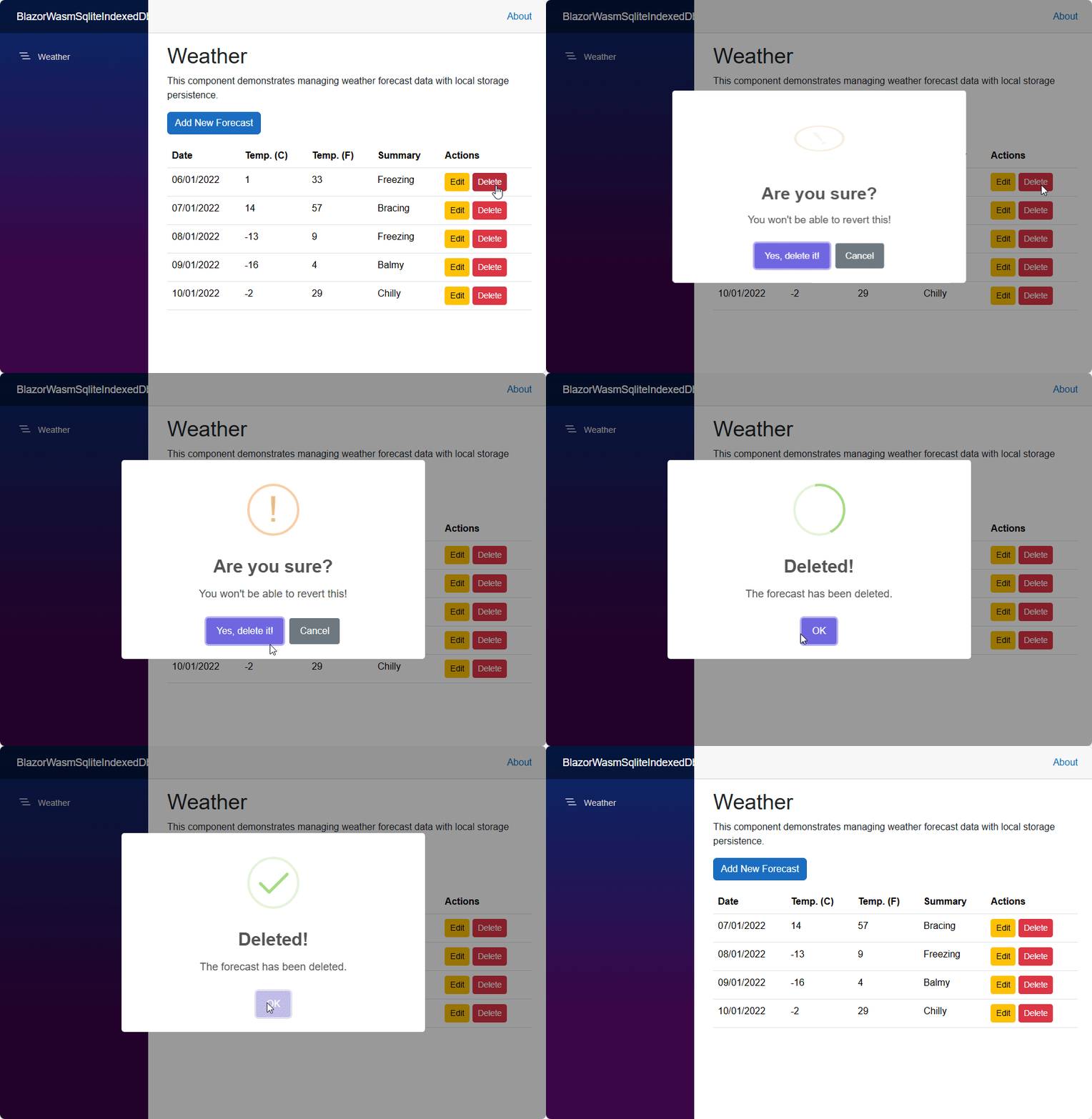
Run the application and view the console while creating, adding, updating and deleting forecasts. Close your browser and load the application again, and you should see that your data is persisting.